
If your Adobe Acrobat is having any graphic rendering issues such as flickering and/or black screen when working on particular PDF files (usually Forms), please follow the detailed steps below to resolve the issue.
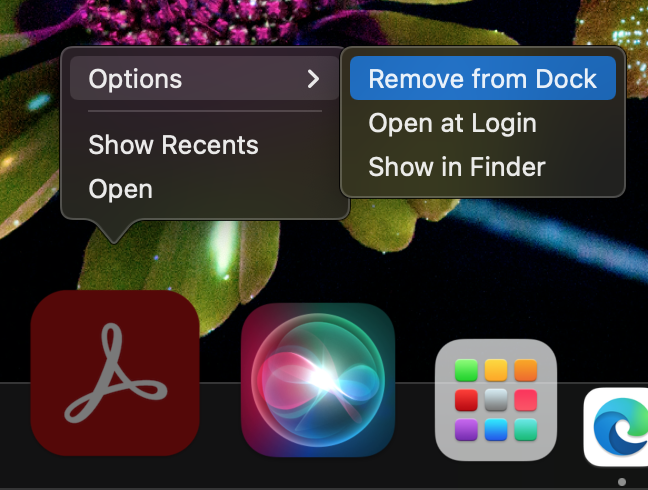
- Check if you have Adobe Acrobat on your Dock. If not, skip to Step 3.

- Remove Acrobat from the Dock.
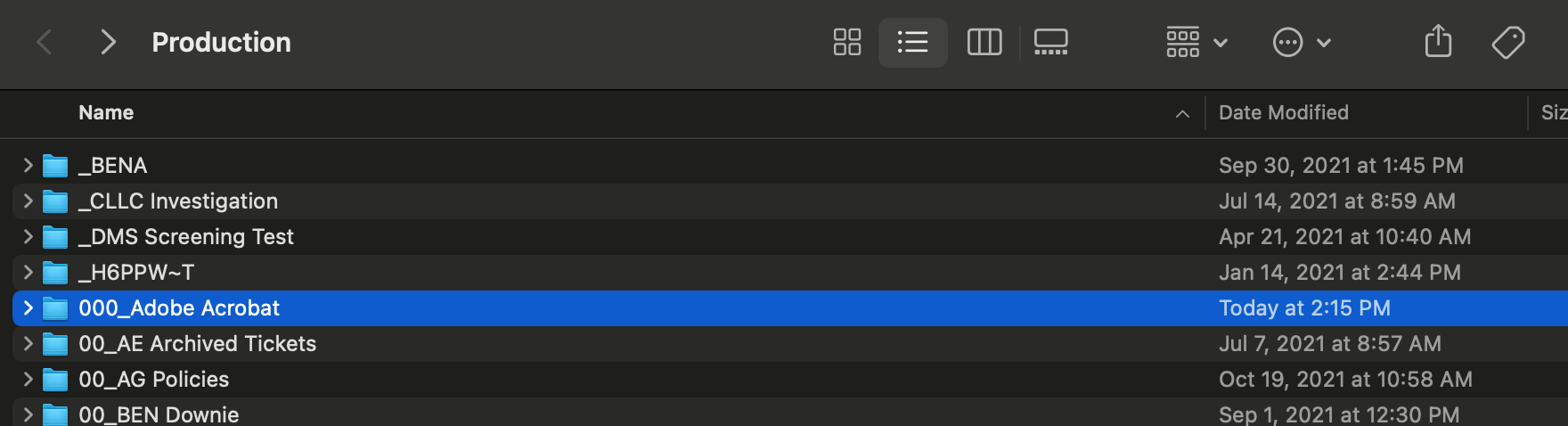
- Open the Production mounted drive/volume on your Computer. Find and open the 000_Adobe Acrobat folder located on the drive.
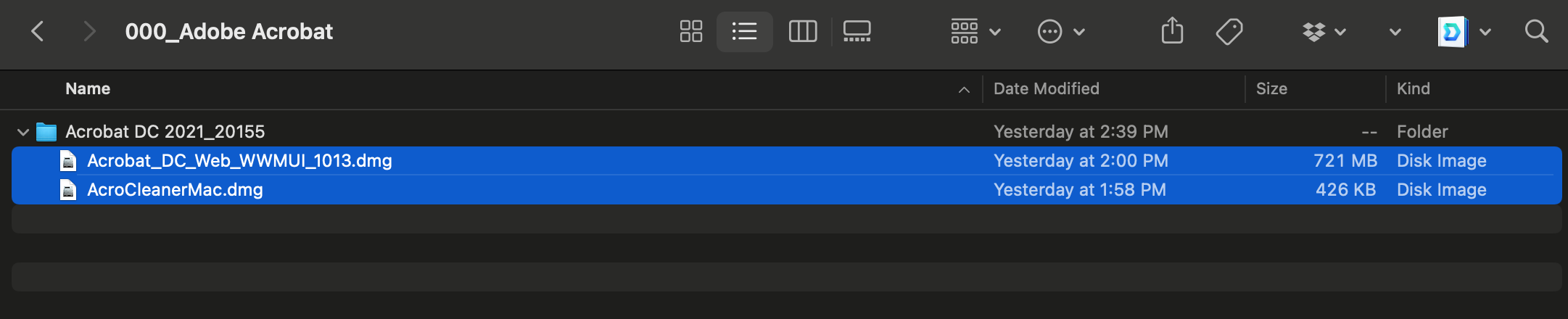
- Copy (DO NOT MOVE OR DELETE) the two dmg installer files located within the Acrobat DC 2021_20155 as shown below:
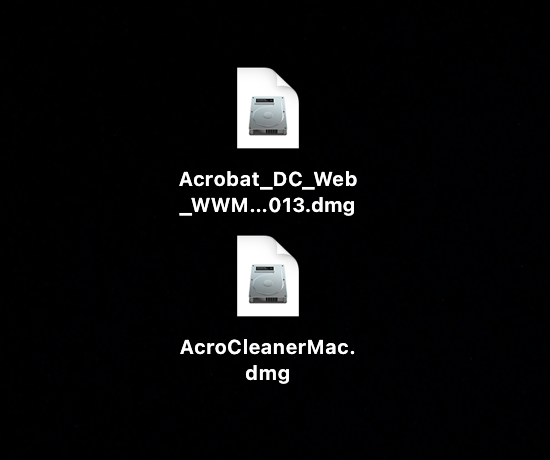
- Paste the files on your Desktop.
- Open/Run the AcroCleanerMac.dmg file. You will be presented with the following window:
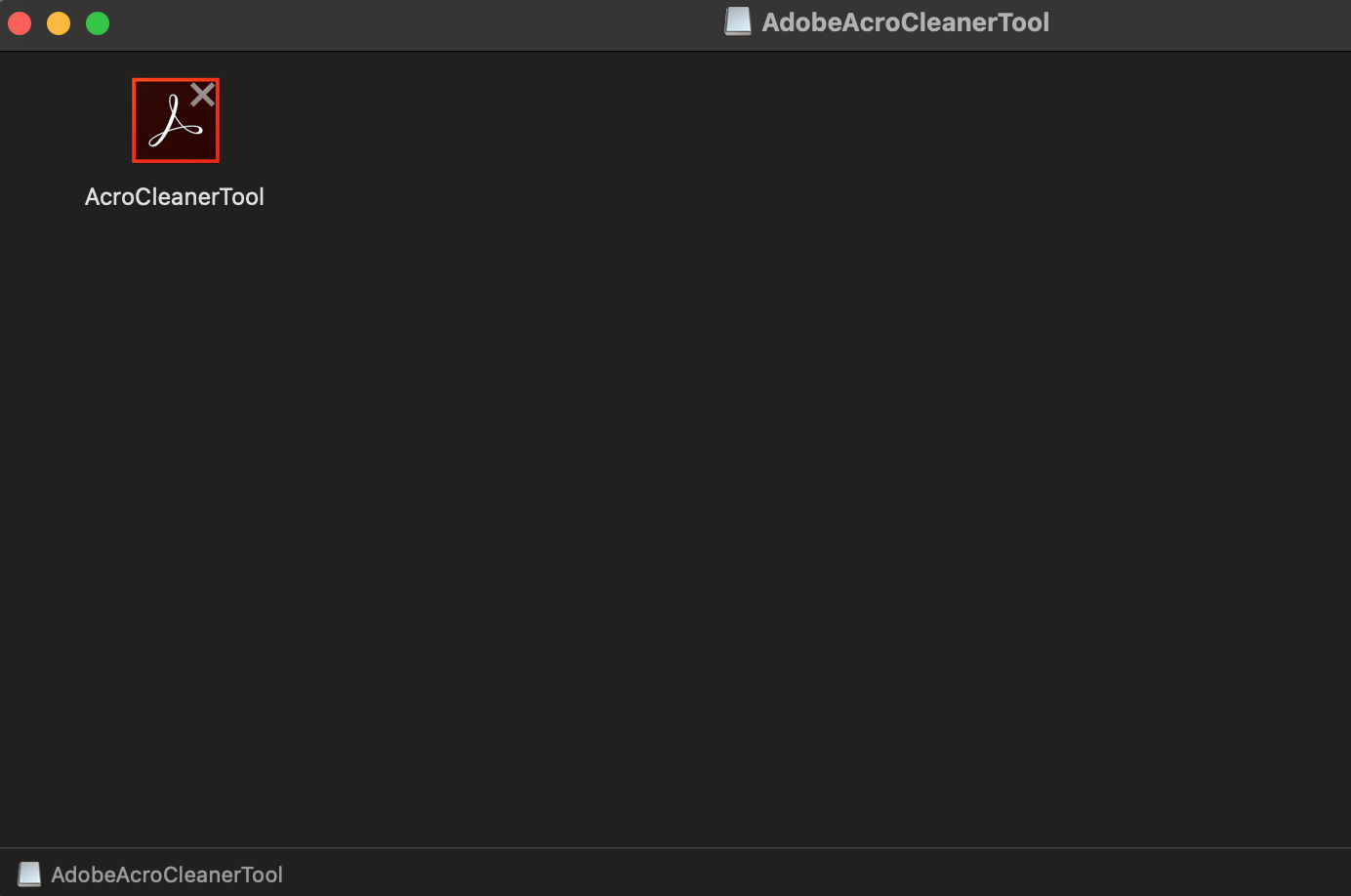
- Open/Run the AcroCleanerTool and follow the steps by clicking on the buttons marked in RED as indicated by the sequential pictures below:
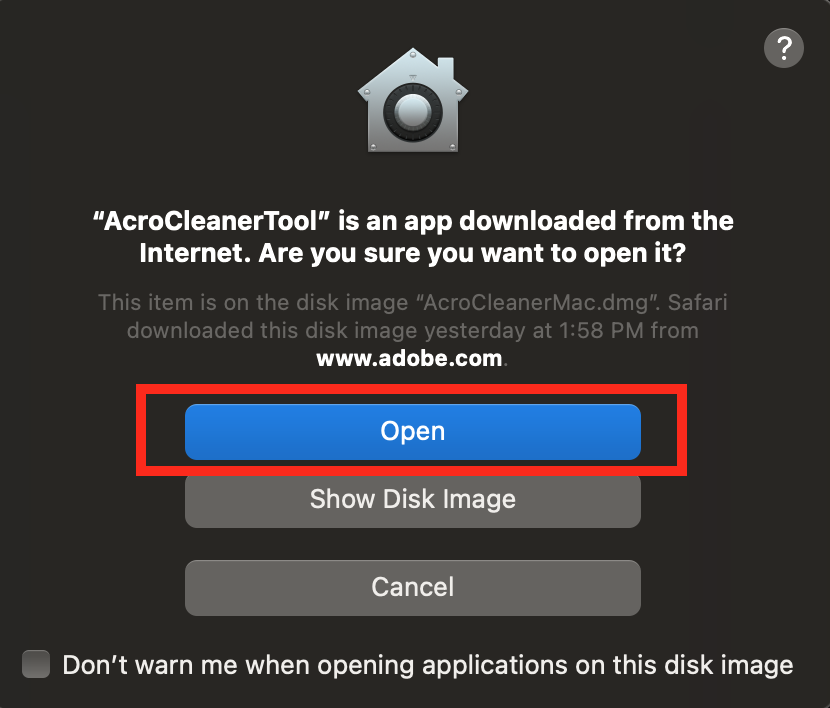
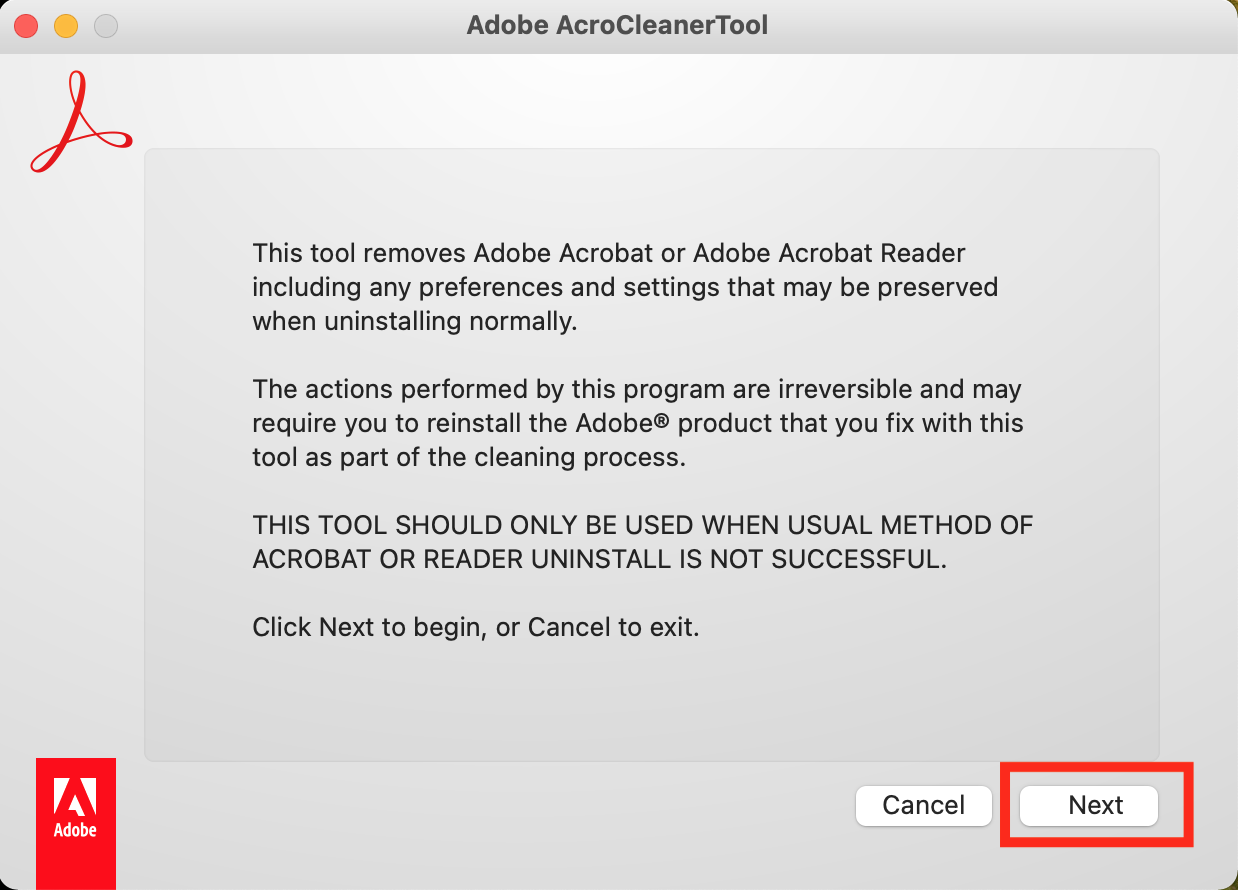
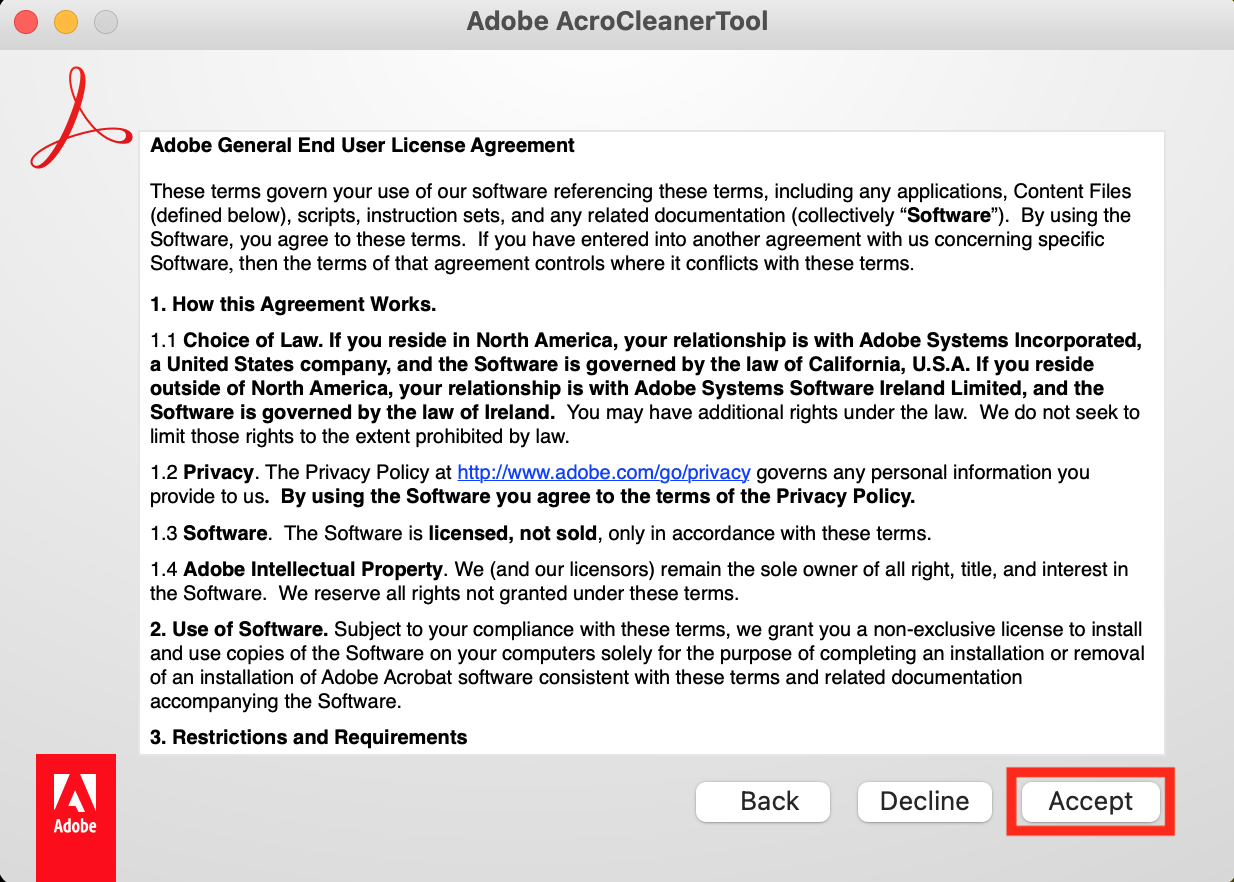
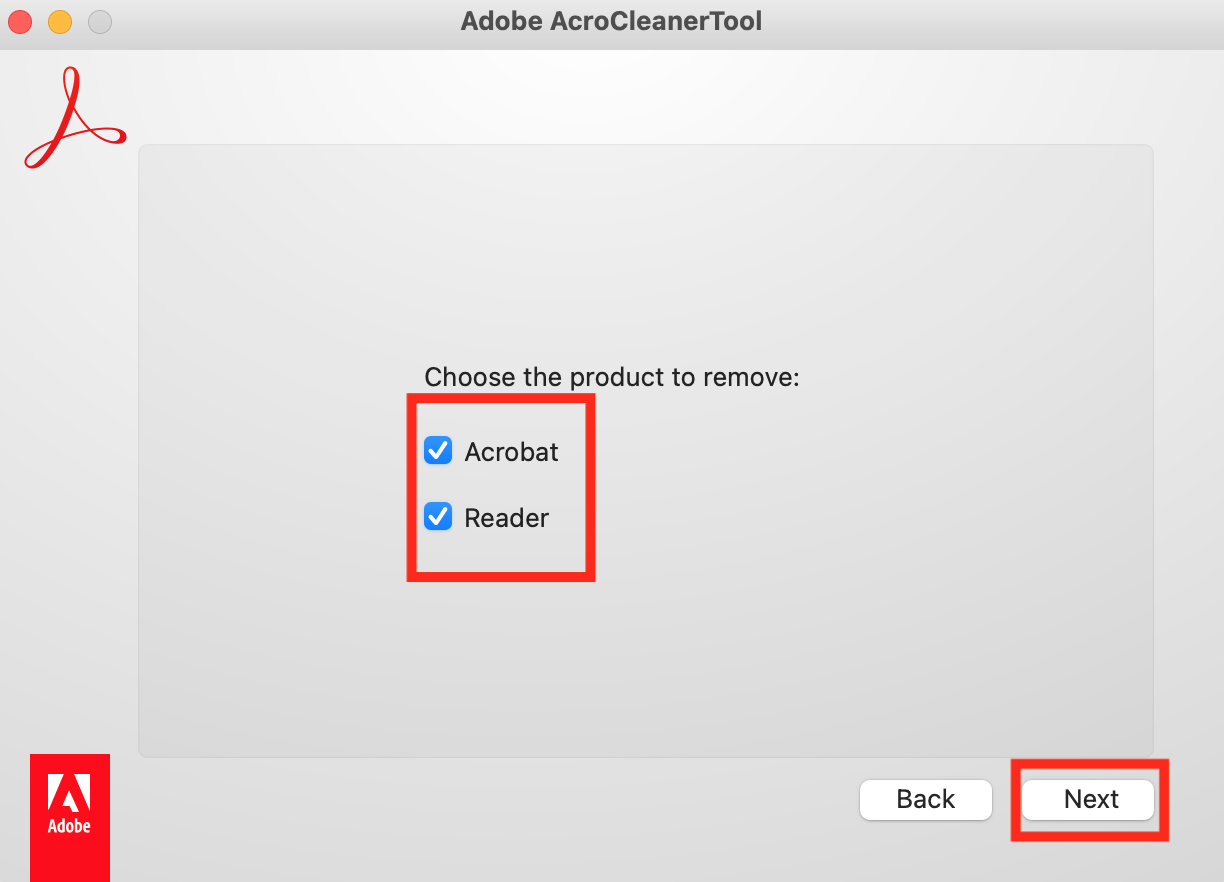
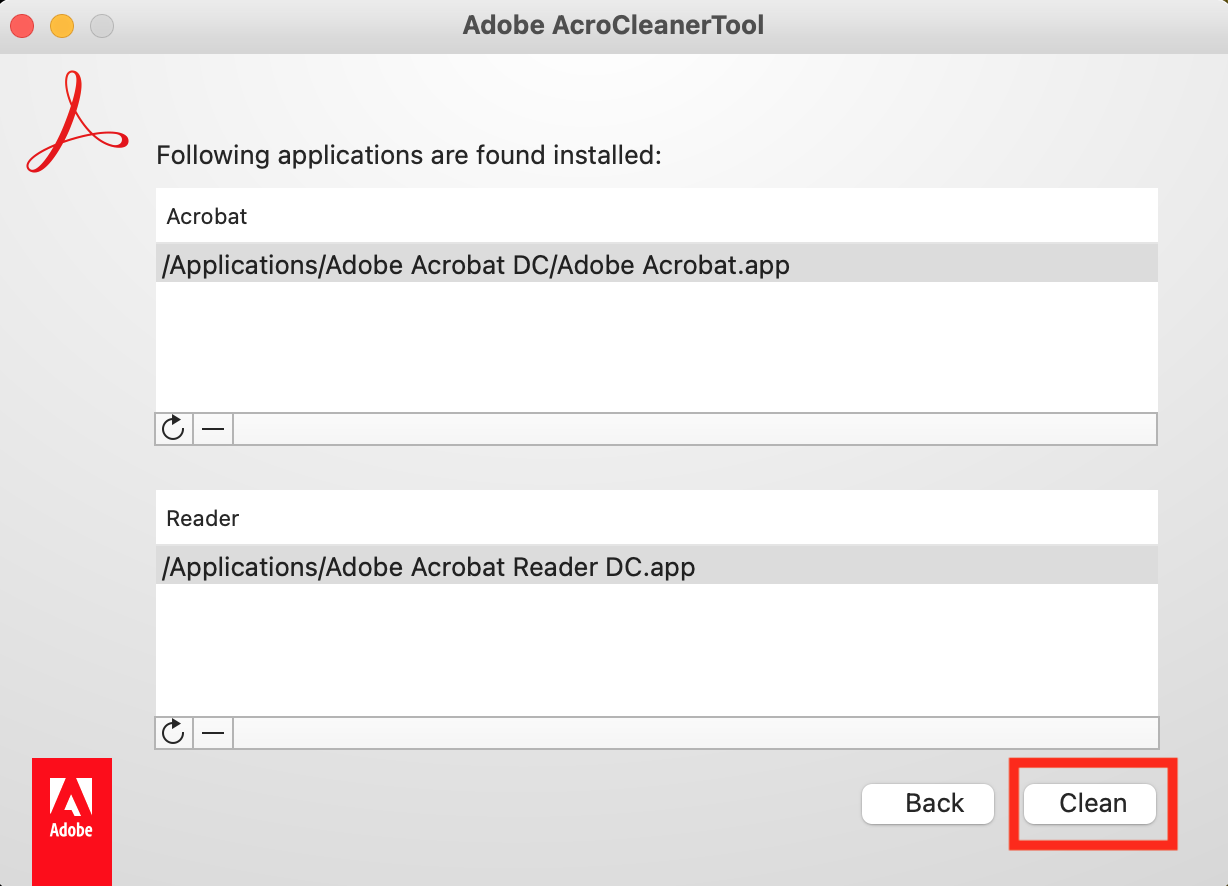
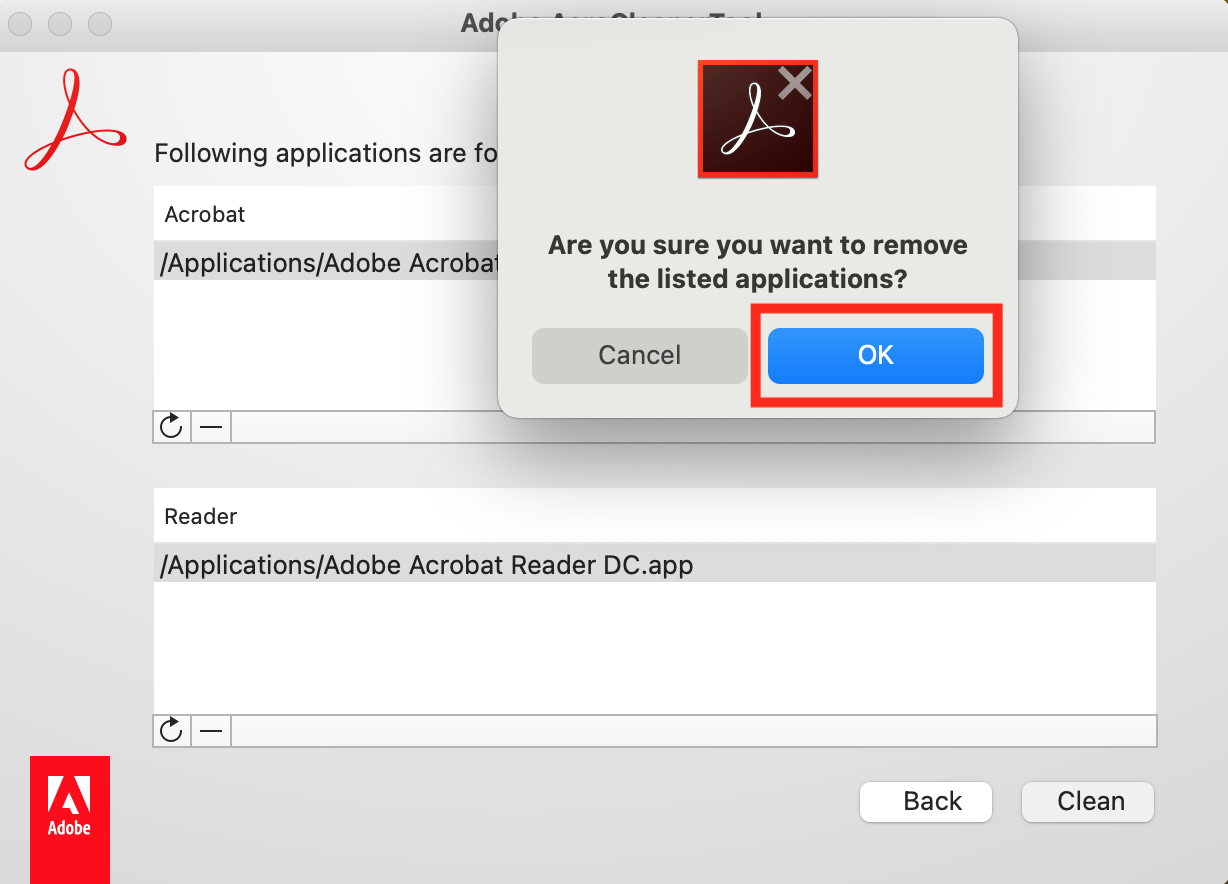
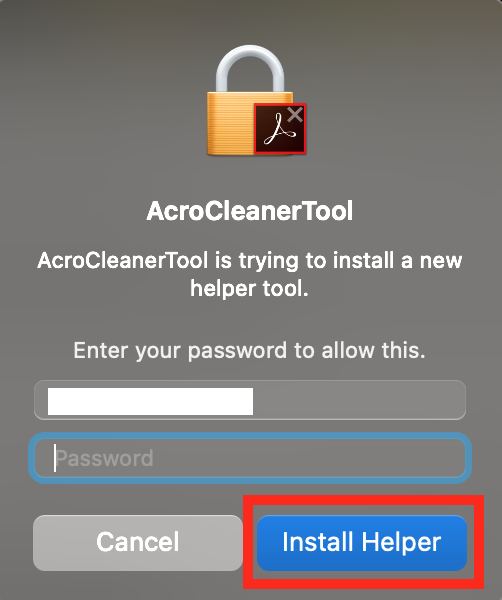
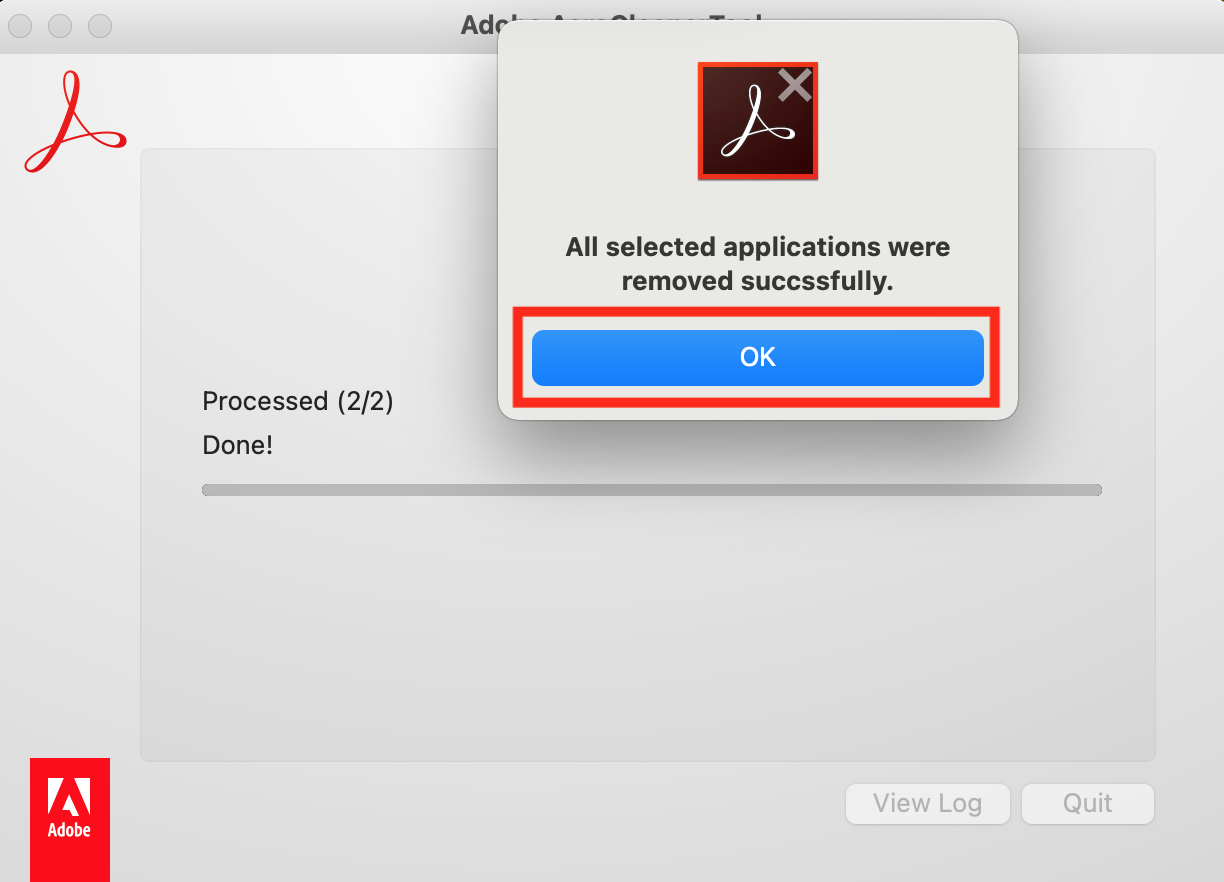
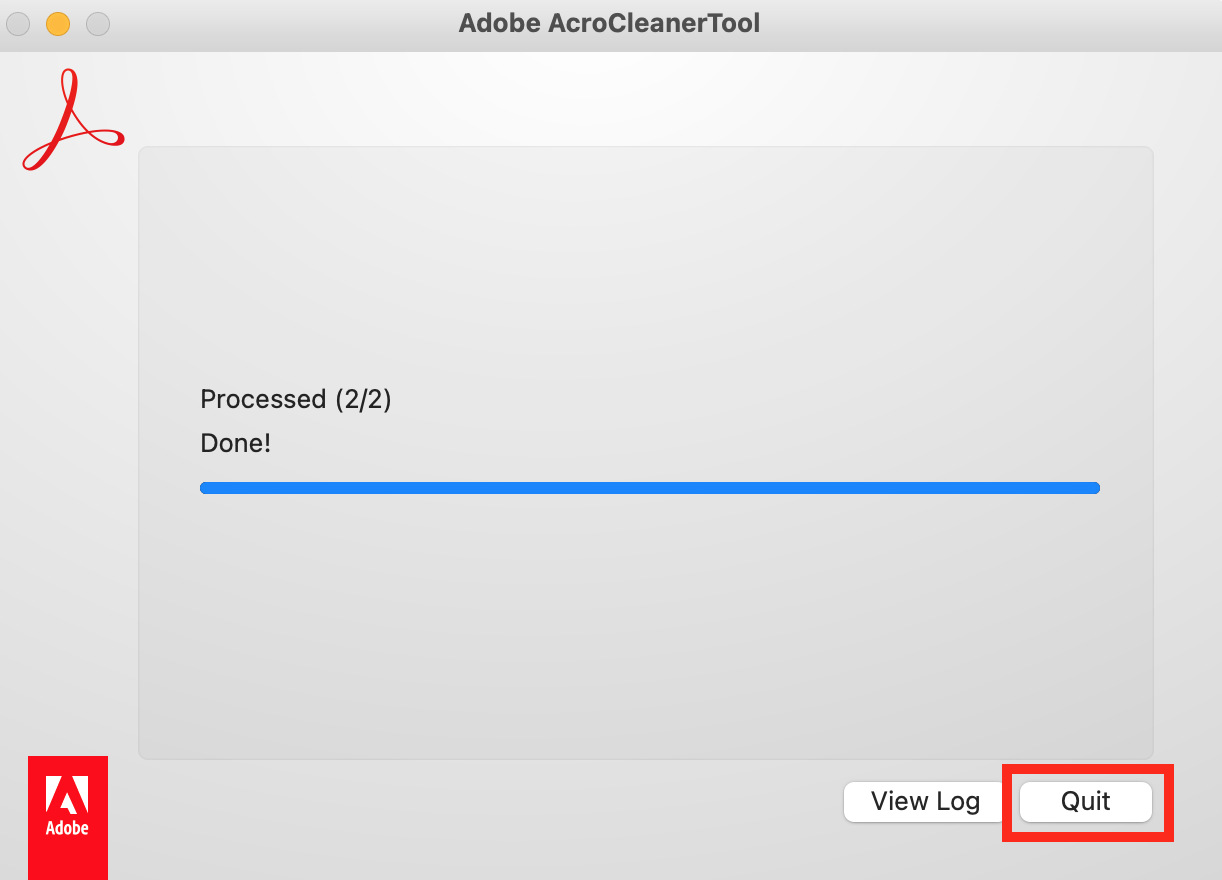
- Next, Open/Run the Acrobat_DC_Web_WWM...013.dmg and follow the steps by clicking on the buttons marked in RED as indicated by the sequential pictures below:
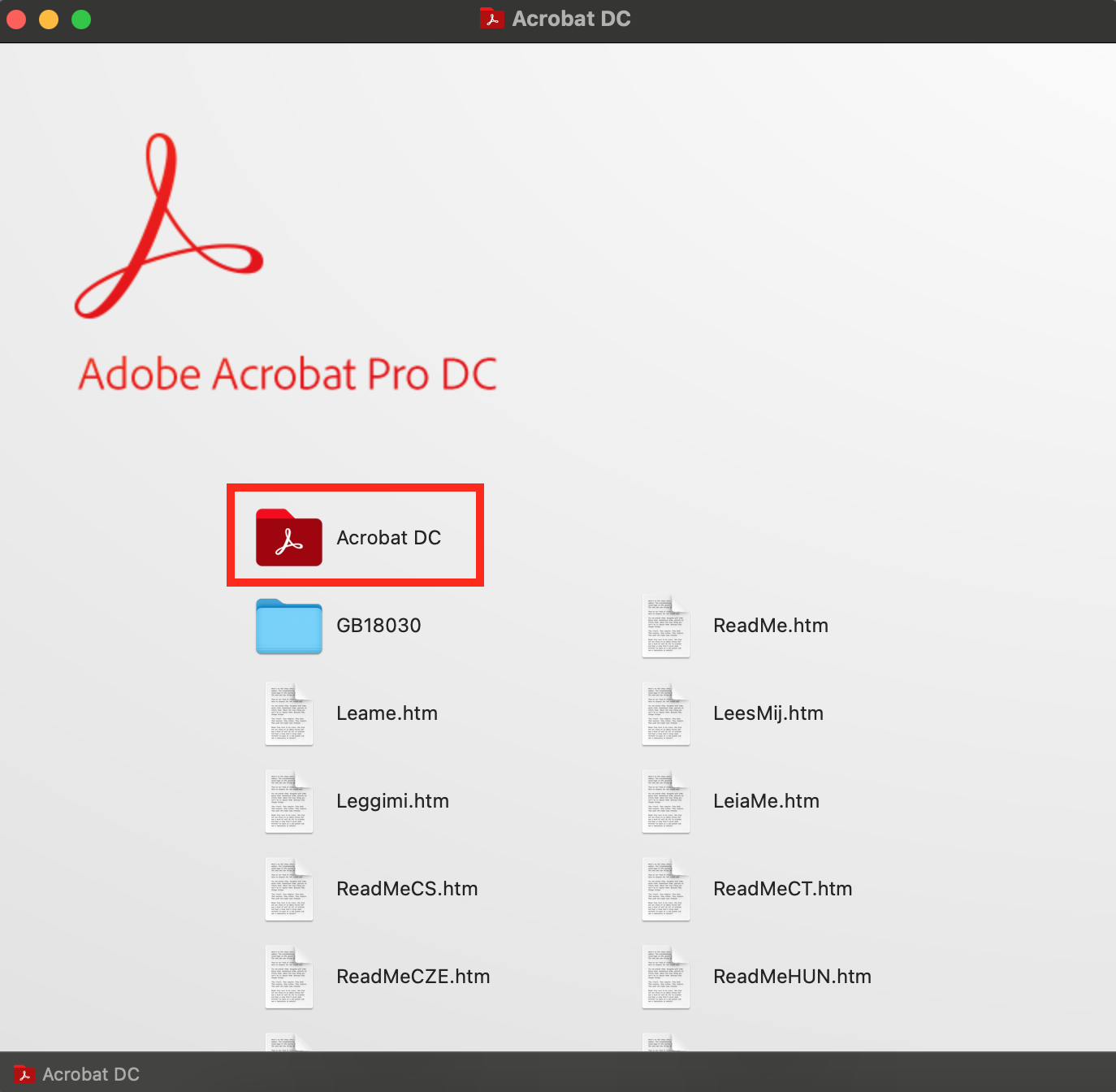
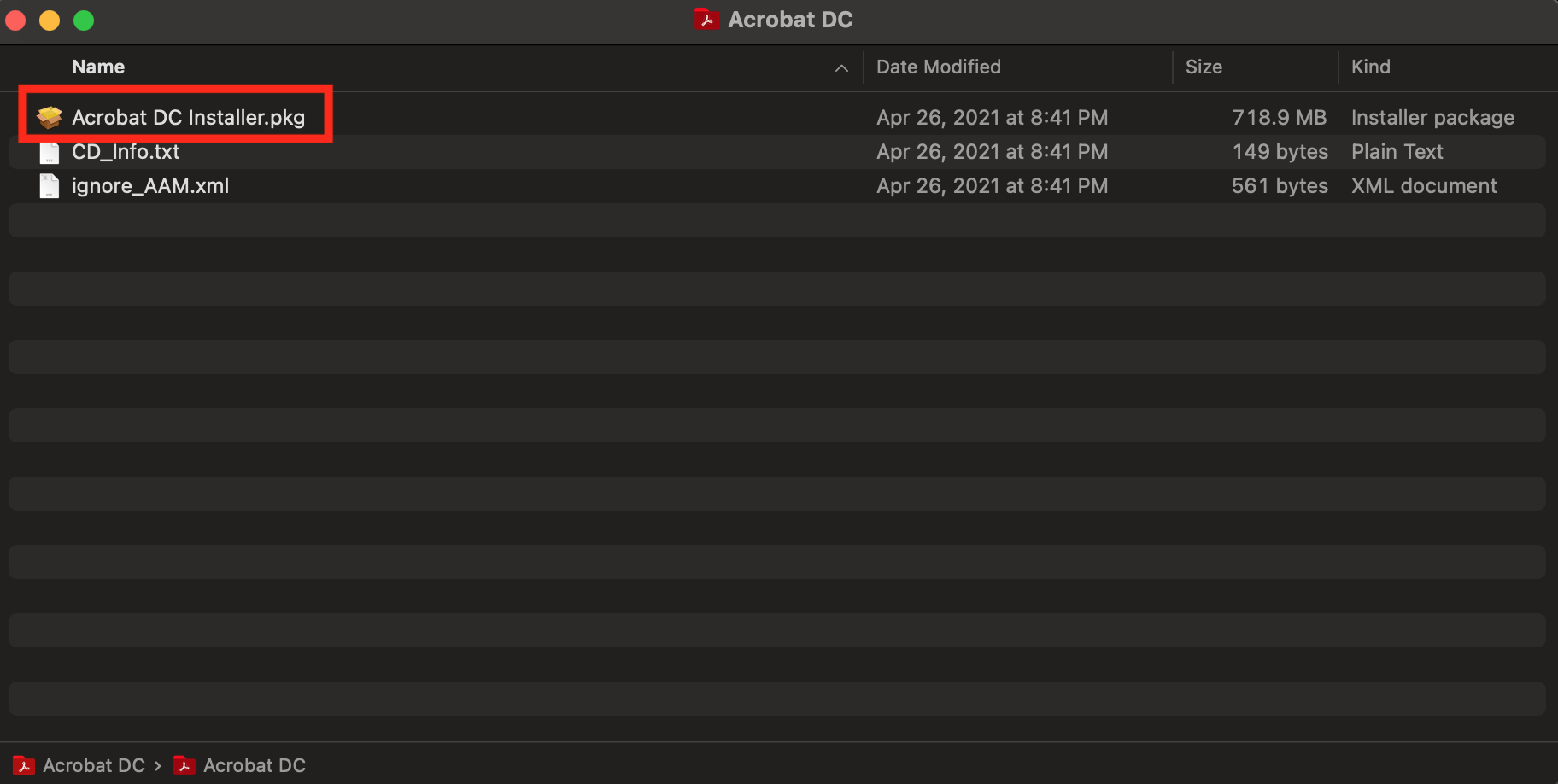
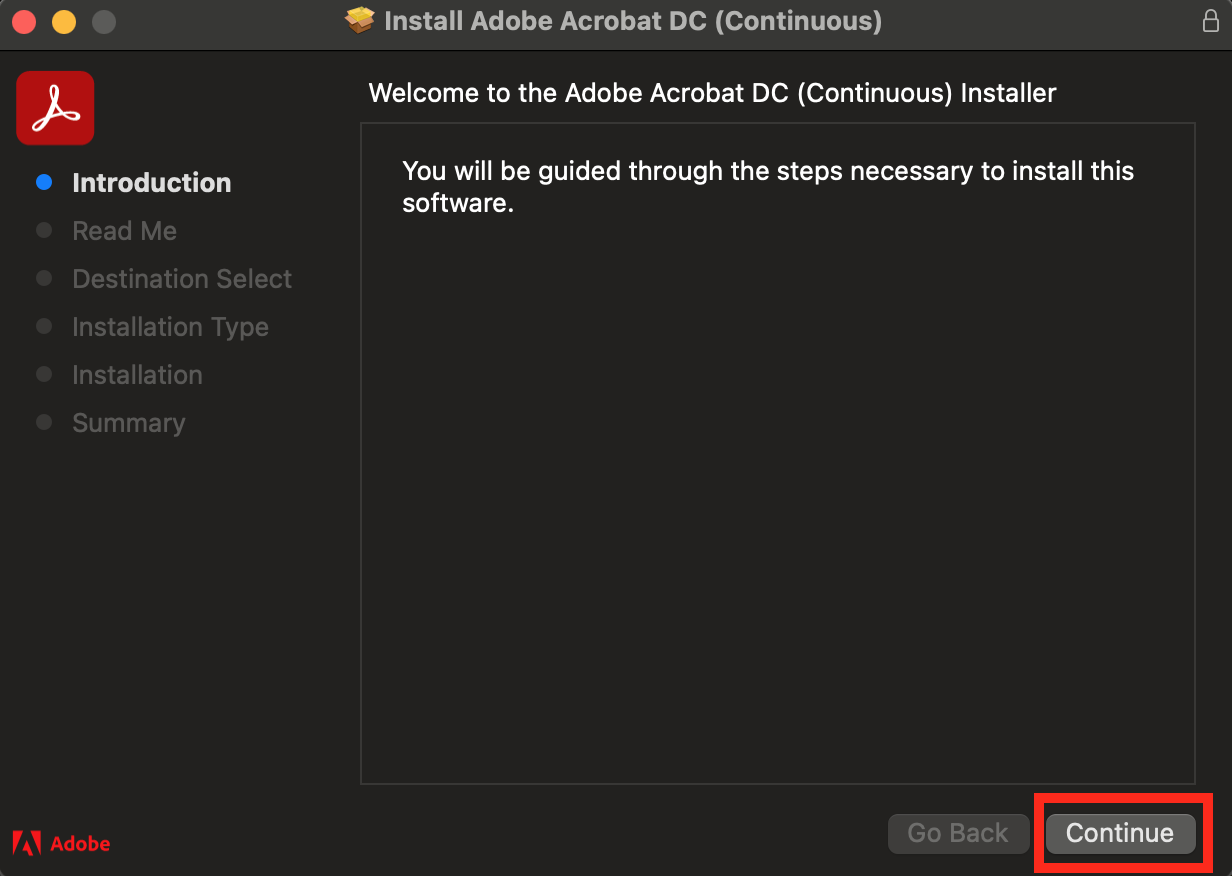
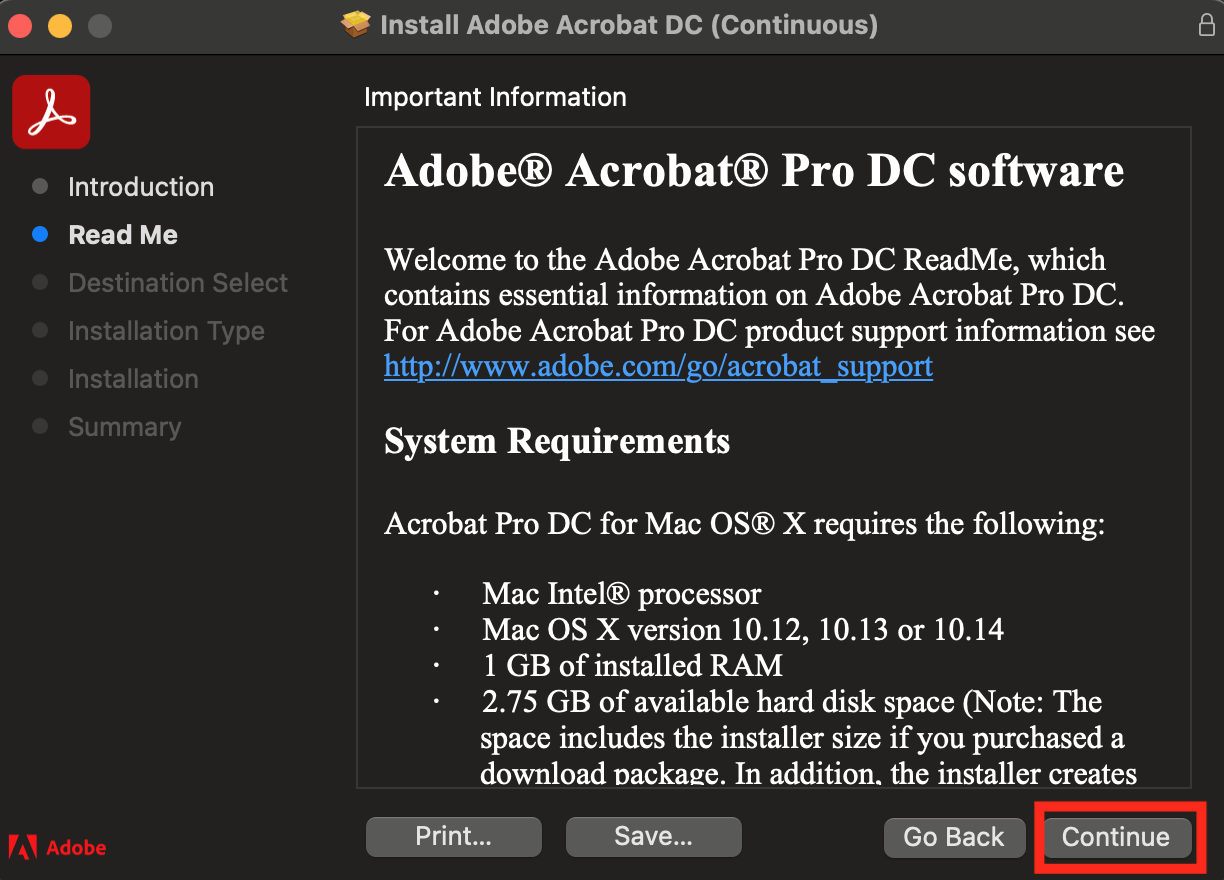

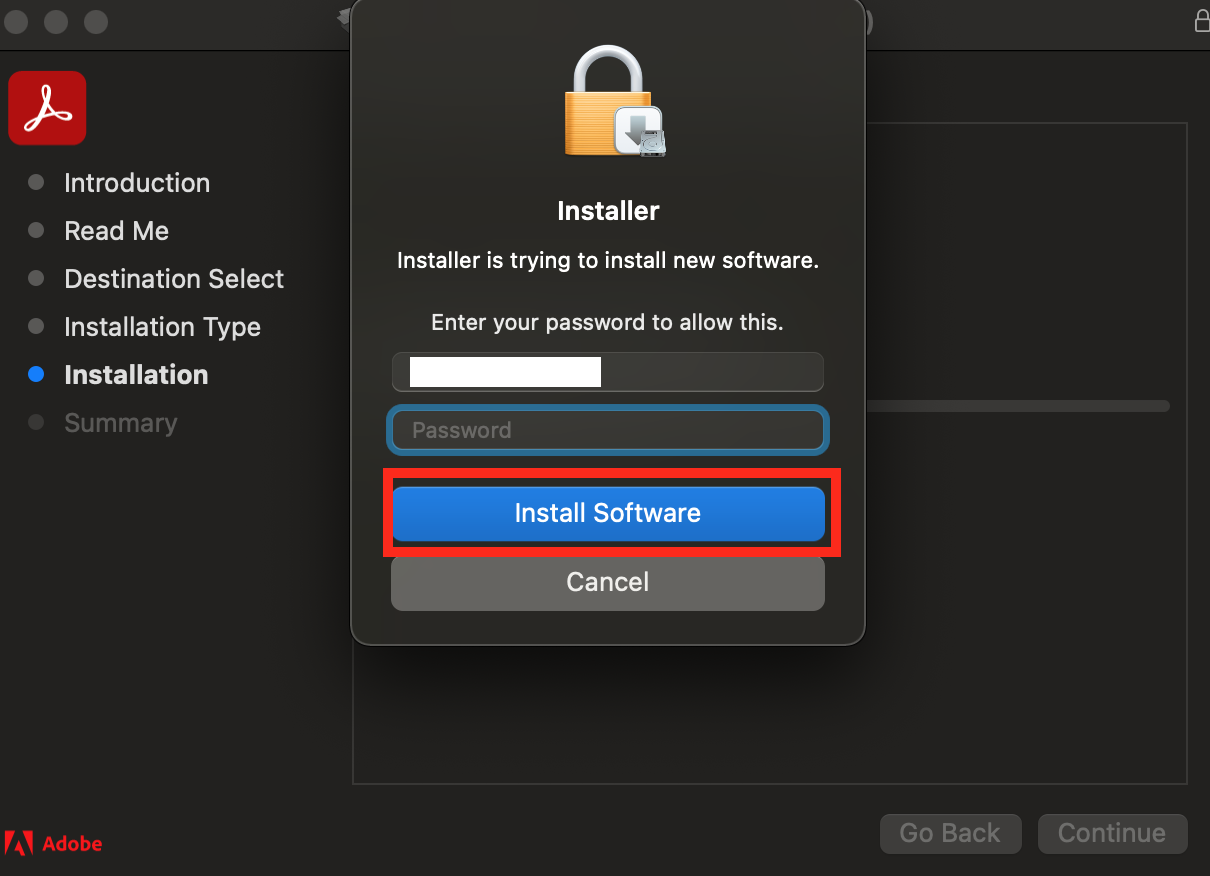
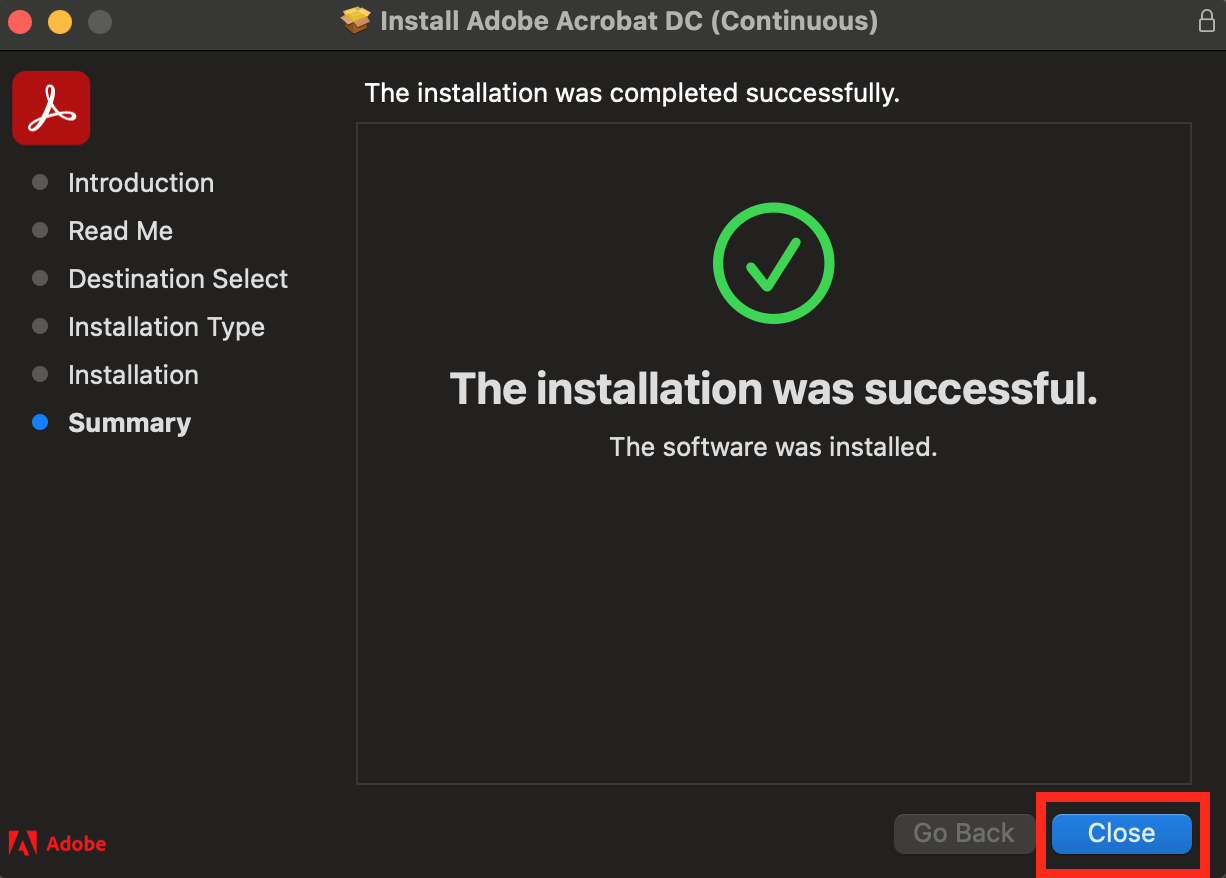
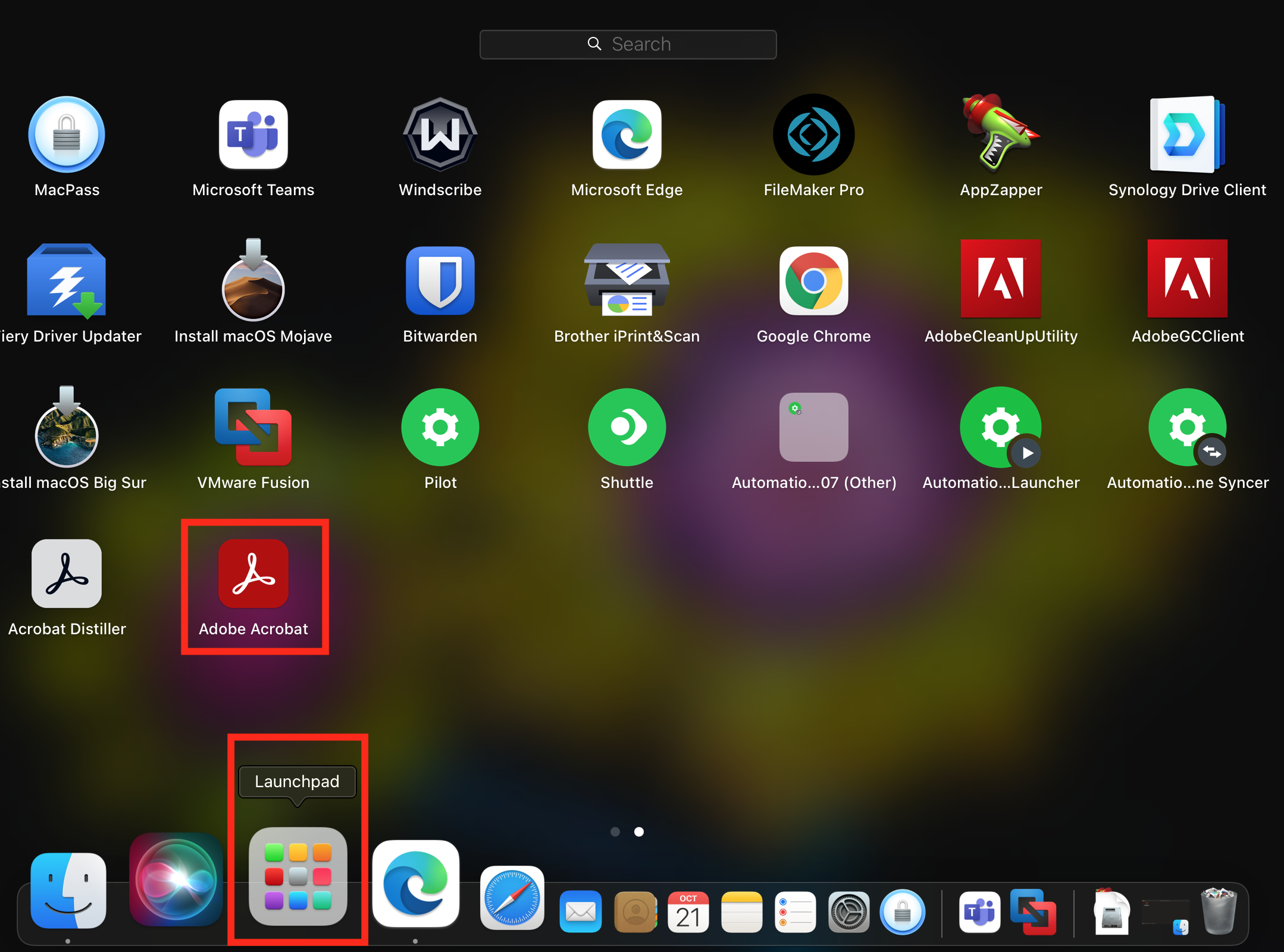
- Open Launchpad from the Dock. Find and Open Adobe Acrobat application.
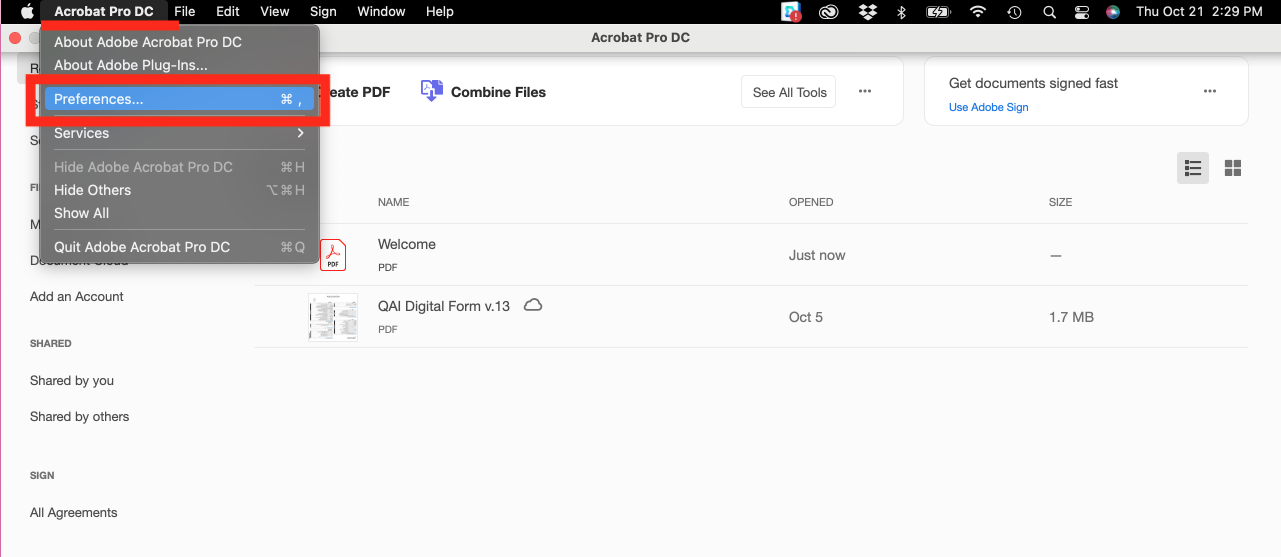
- Once Acrobat is open, Select Acrobat Pro DC from the top left and Select Preferences.
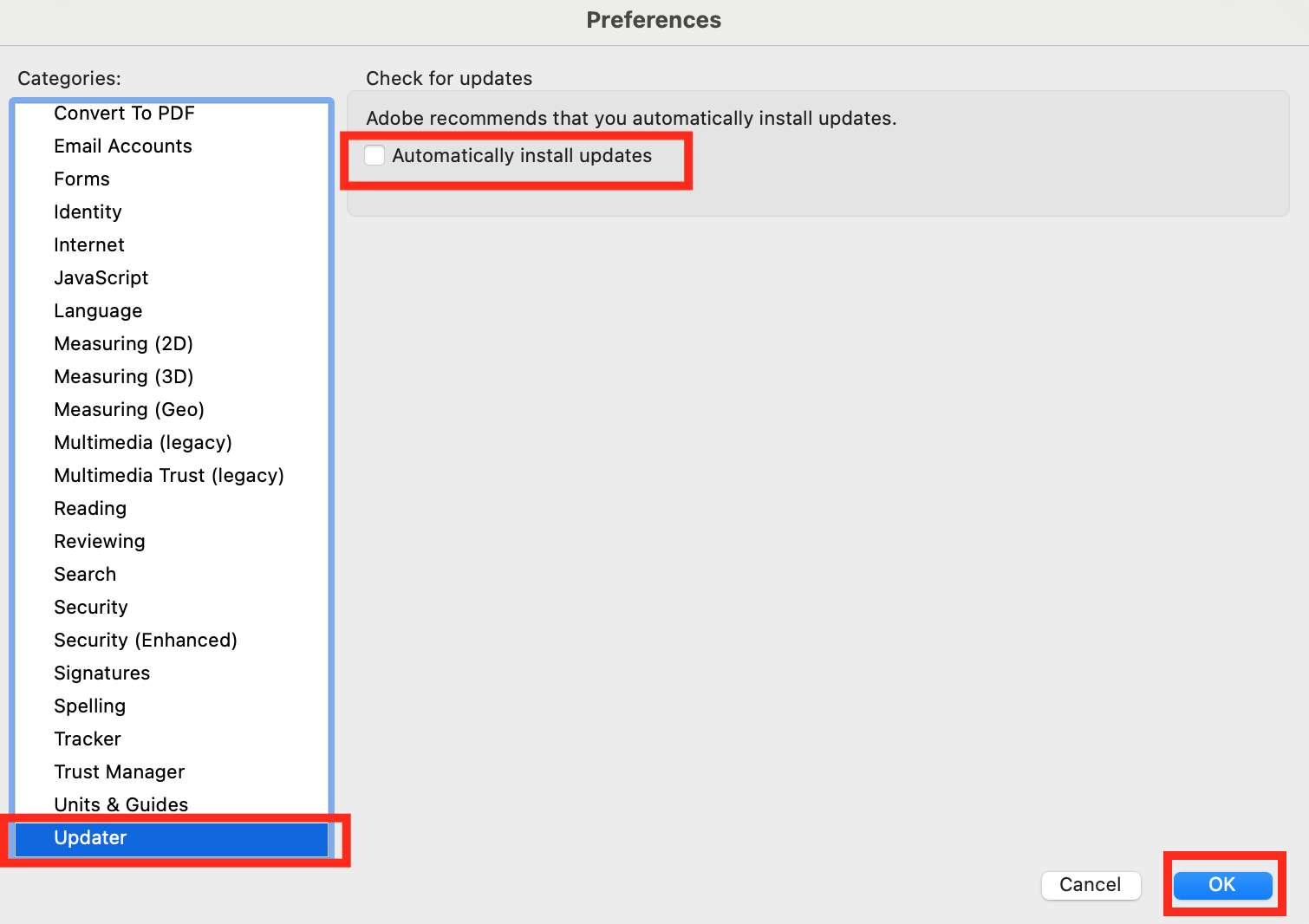
- Under Preferences, select the Updater tab (last option under the Categories list) , deselect/uncheck Automatically install updates and select OK.
- Open Adobe Creative Cloud by either selecting the Creative Cloud icon from the toolbar

 or Applications list
  .
. - Once Creative Cloud is open, Select Creative Cloud from the top left and Select Preferences.
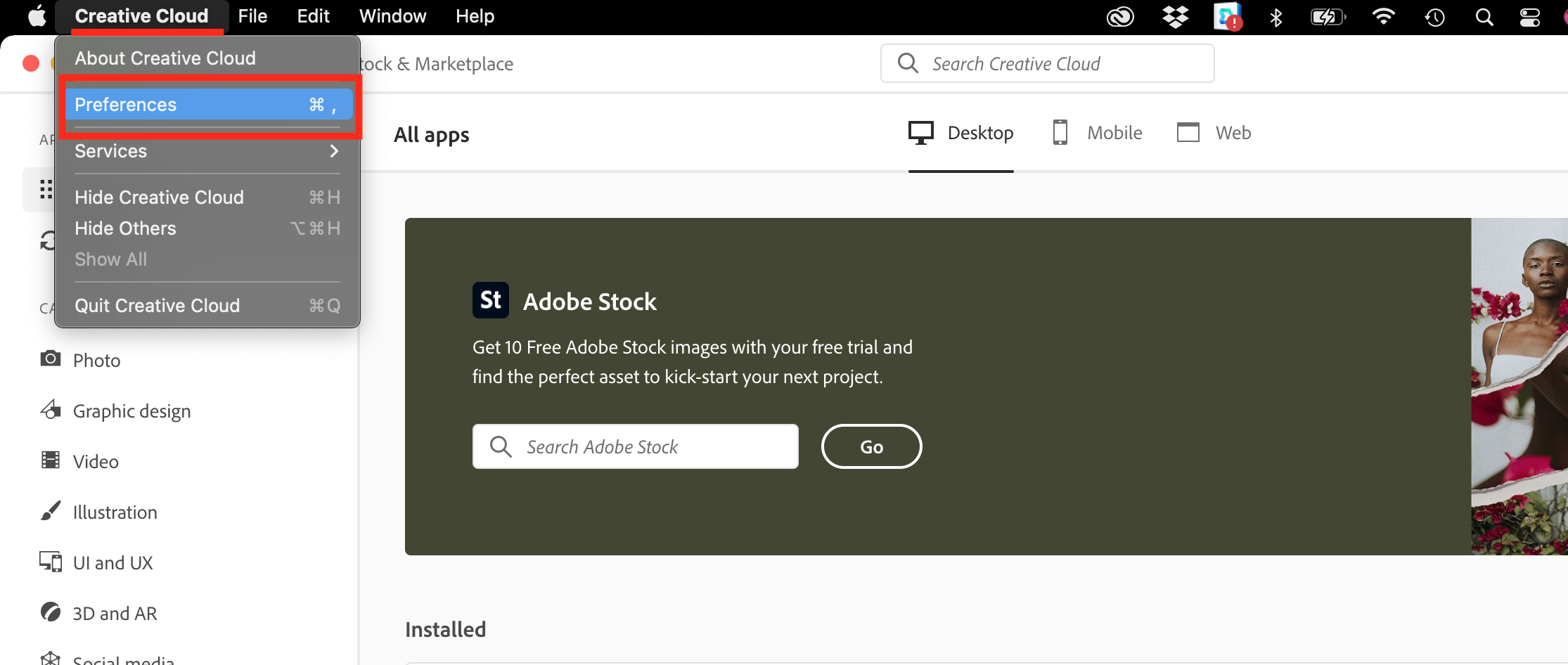
- Finally, under Apps preferences, make sure to TURN OFF Auto-update and select Done. That's it!
Comments
0 comments
Please sign in to leave a comment.