
PLEASE NOTE: Prior to printing, please ensure that the print file is fully modified and ready for the FINAL PRINT OUTPUT that the customer requires! (This includes removal of colors, etc.). Acrobat Pro does not have the tools to make modifications to the file.
In order to print high quality proofs, follow the steps as described below:
- Open the PDF proof file using Adobe Acrobat Pro.
-
Adobe Acrobat adds sophisticated print production tools that enable a complete PDF workflow for high-end color output. The print production tools can be accessed by choosing Tools > Print Production.
Open the Print Production tools. Choose Tools > Print Production. The Print Production tools are displayed in the right hand pane.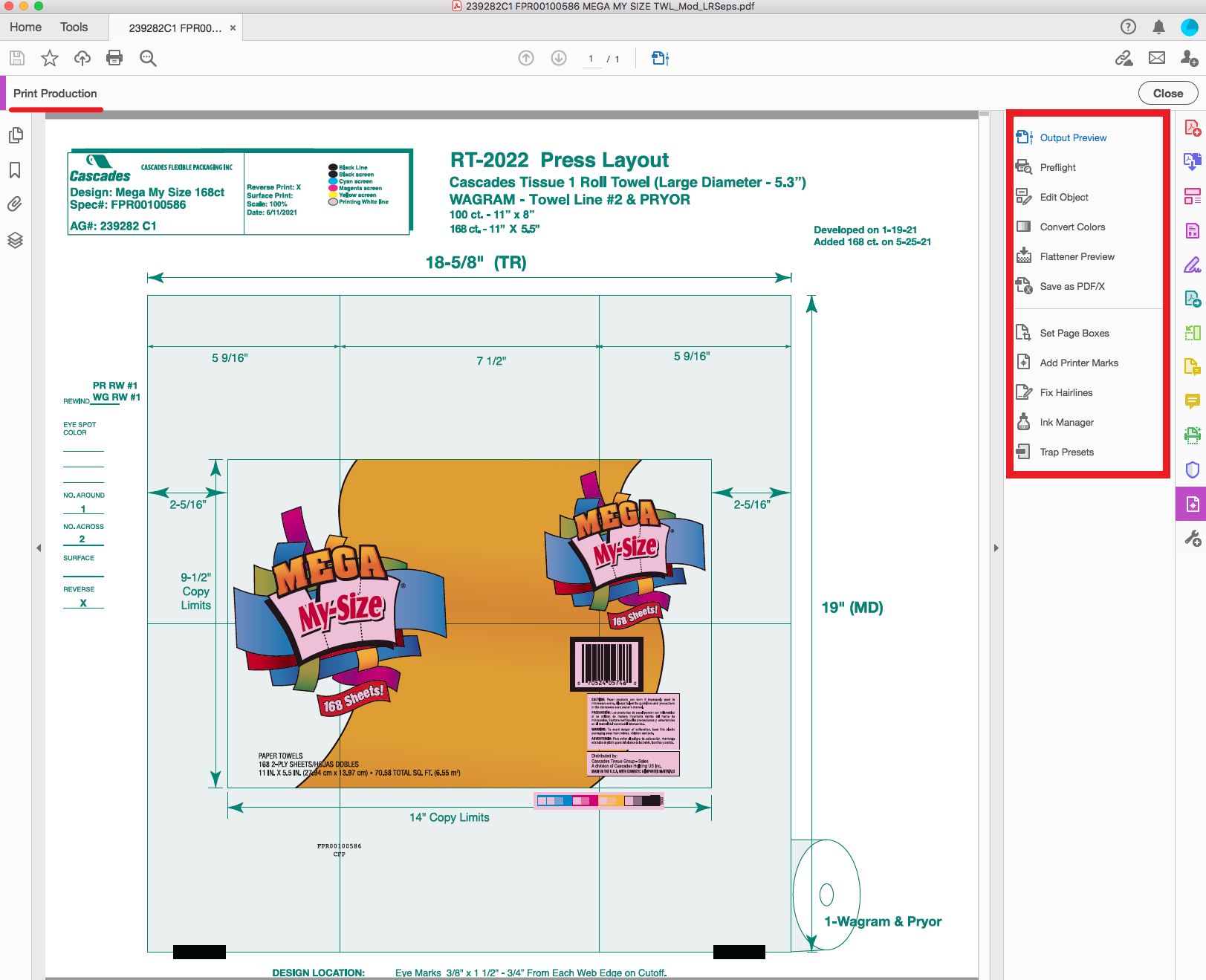
- Choose the Output Preview option from the right hand pane. An Output Preview window will open.
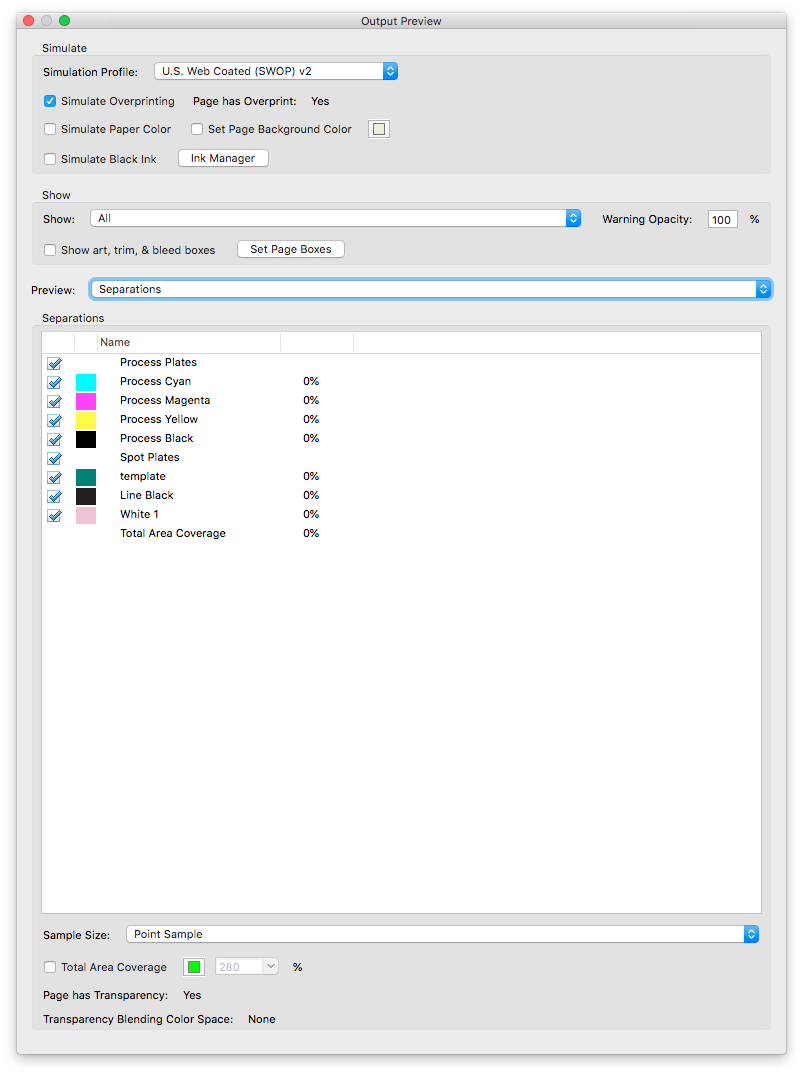 Ensure that Simulate Overprinting is checked/enabled.
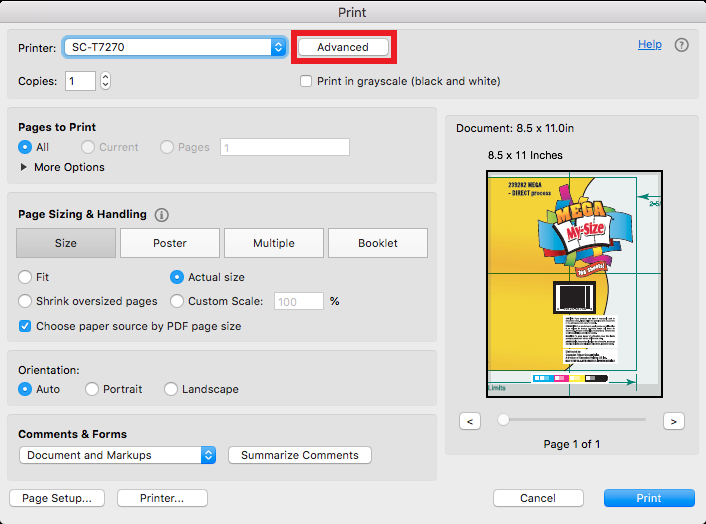
 - Choose File > Print. A Print window will open.
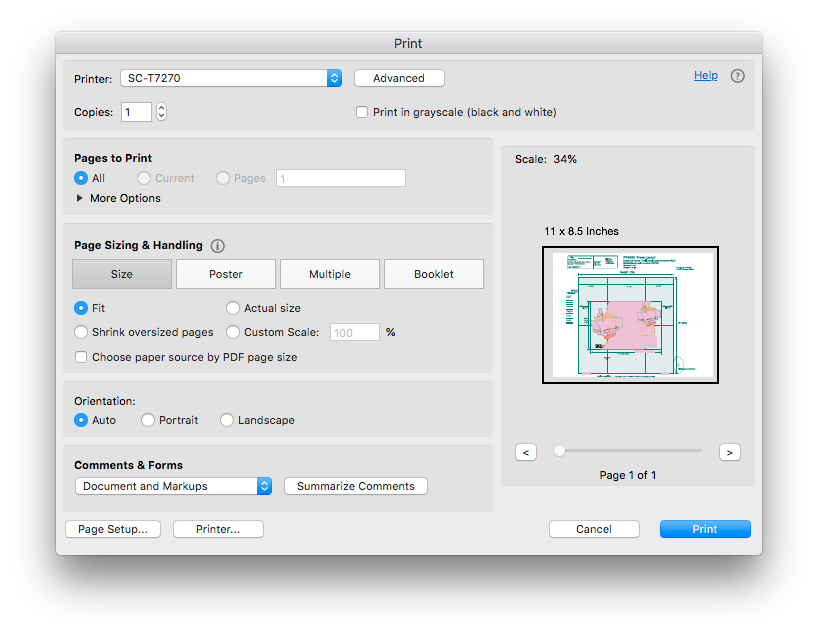 Choose the SC-T72070 from the Printer dropdown menu.
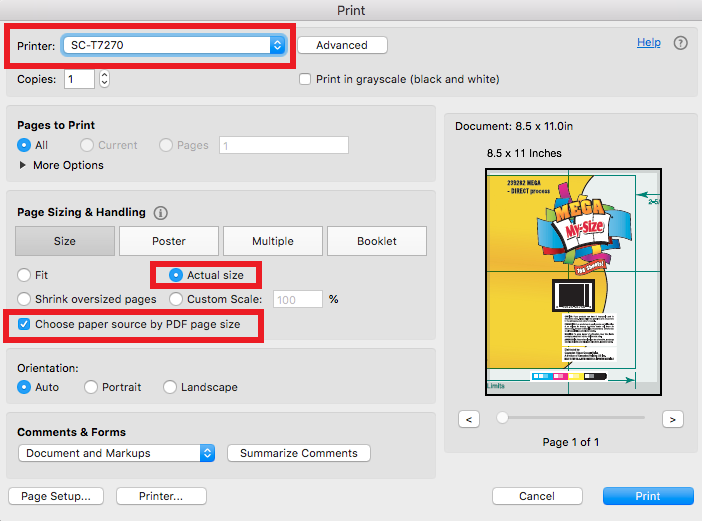 Under Page Sizing & Handling, select Actual size and select Choose paper source by PDF page size. (NOTE: If the Document Width is larger than 42 inches, please rotate the file vertically so that the printer outputs correctly.)
 - Select Printer Advanced option. The Advanced Print Setup window will open.
- In the Advanced Print Setup window, select Output from the left hand pane. Uncheck/Deselect the Print As Image option (if checked/selected). Set the dpi to 600. Select/Check the Simulate Overprinting and Use Maximum Available JPEG2000 Image Resolution options.
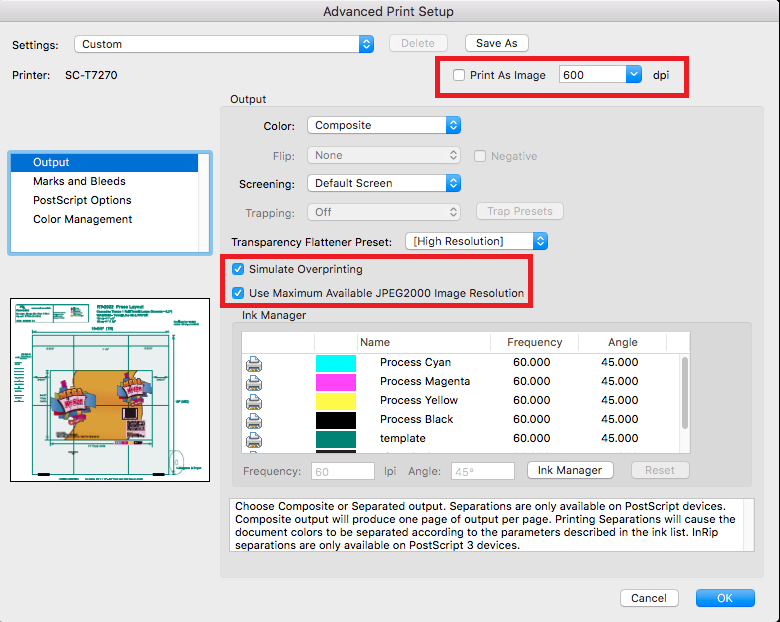
- Select/Check the Print As Image option and select OK.

- Select the Printer... option. A Print window will open.
- Under Pages select Printer Settings option from the dropdown. Under Mode select Advanced Settings. Under Resolution select Max Quality - 720x1440 dpi option from the dropdown. Finally, Uncheck/Deselect the High Speed option and Check/Select the Finest Detail option. Then choose the Print button to be taken back to the main Print window.
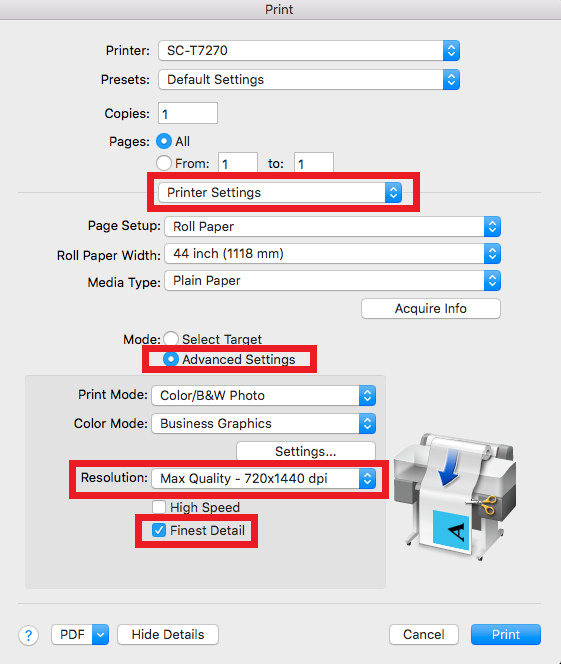
- Select the Print option from the main Print window to print the file to the EPSON SC-T7270 printer.
Comments
0 comments
Please sign in to leave a comment.