
In order to install the 3CX desktop application on your computer, please follow the steps below:
- Open the 3CX Web Client by clicking on the 3CX favorited bookmark link on your web browser. If you do not have it bookmarked, here is the link: All Groups - 3CX (my3cx.ca)
- Sign in to the Web Client if prompted. (Login credentials for your 3CX account can be found in your Outlook inbox, email subject "Your User Account on your New 3CX System")
- Once you have the Web Client opened, you may be prompted with the following dialog box:
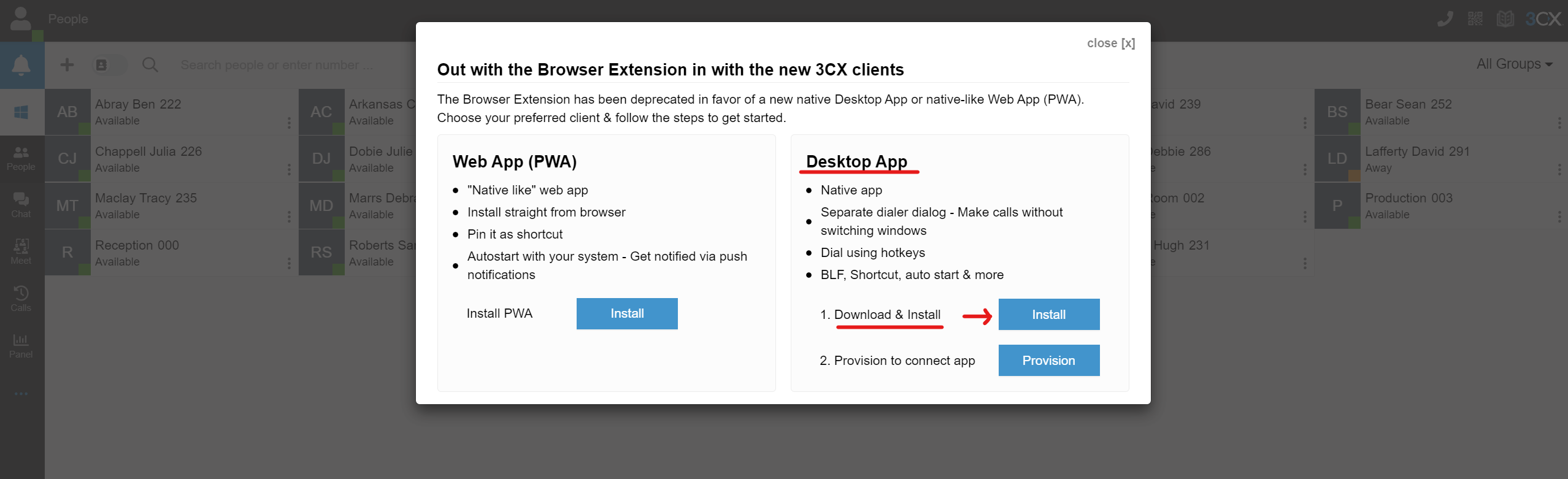 Click on the blue 'Install' button under the Desktop App section as shown above.
  If you are not prompted with the dialog box, click on the blue 'Apple' icon (for Mac users) on the left toolbar under the bell icon. [For Windows users, it will be a blue 'Windows' icon]
 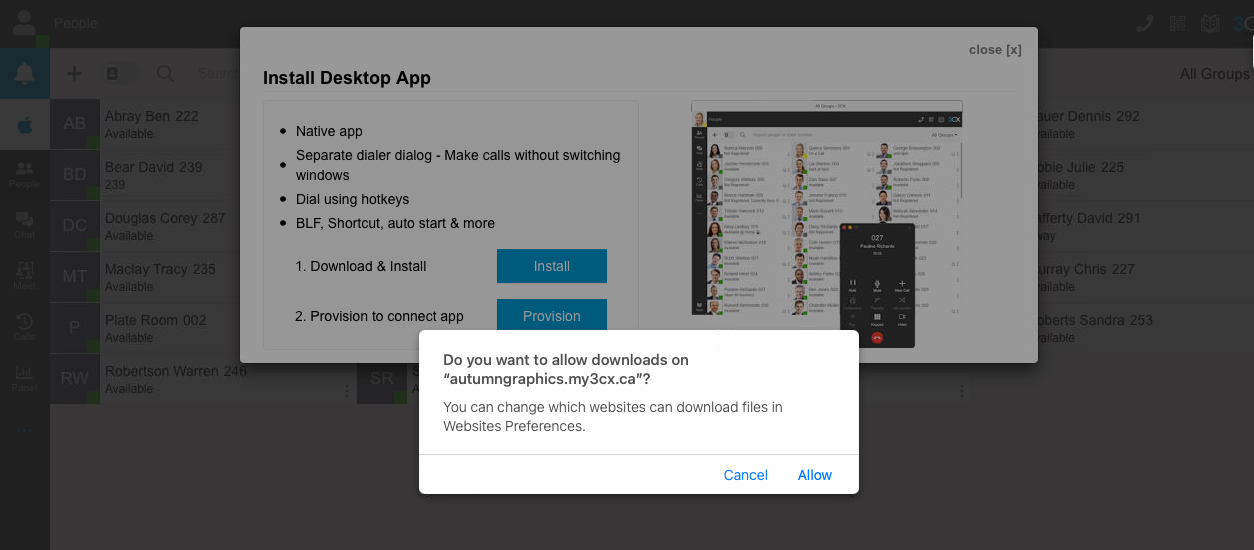 Once you click on 'Install', you may be prompted with this window. Click on 'Allow'.
 - The 3CX installer (3CXDesktopApp-18.8.508.dmg) will get downloaded in your Downloads folder. Run the installer and follow the prompts to successfully install the application.
- Once installed, click on the blue 'Provision' button. This should get your account connected to the Desktop Application if it did not connect to it automatically.
- You should now be able to receive and make calls from the new 3CX app without having to use the Web Client.
NOTE: Check your Audio settings on the Desktop App and have it mimic your Web Client. To access these settings, select the three blue dots on the left toolbar as shown in the image below.
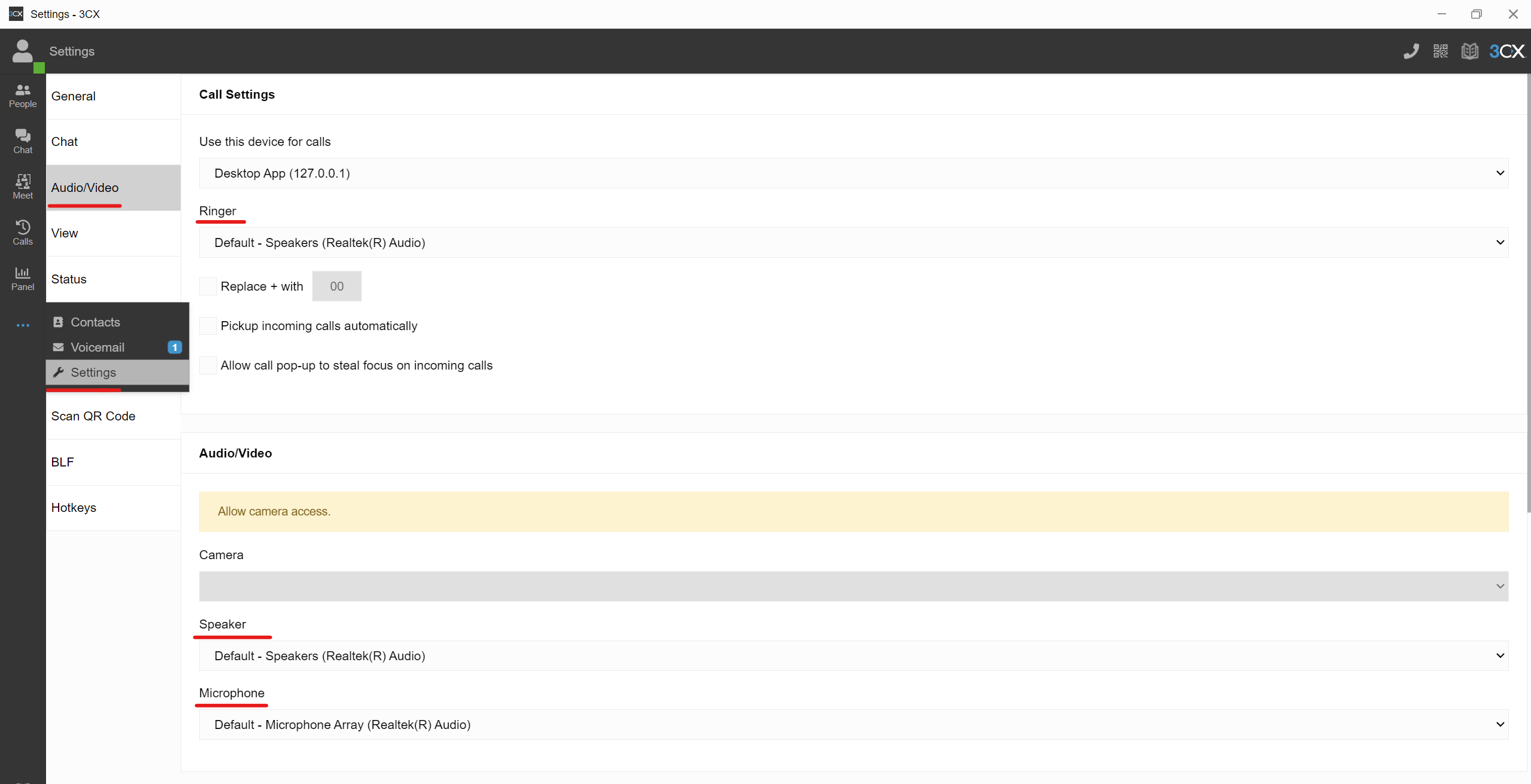
In particular, ensure your Ringer is set to your Mac in-built speaker, and that your Speaker and Microphone settings are set to your Bluetooth headset.
Comments
0 comments
Please sign in to leave a comment.